

Fix drive tracking problems
Drives stopped being detected? Work through the permission checklist, battery settings, and the Samsung sleeping-apps mystery step by step.
Troubleshooting
Fix drive tracking problems
Drives stopped being detected? Work through the permission checklist, battery settings, and the Samsung sleeping-apps mystery step by step.
Updated Sep 10, 2026 · 7 steps · 2 min read
Start at the Permissions screen
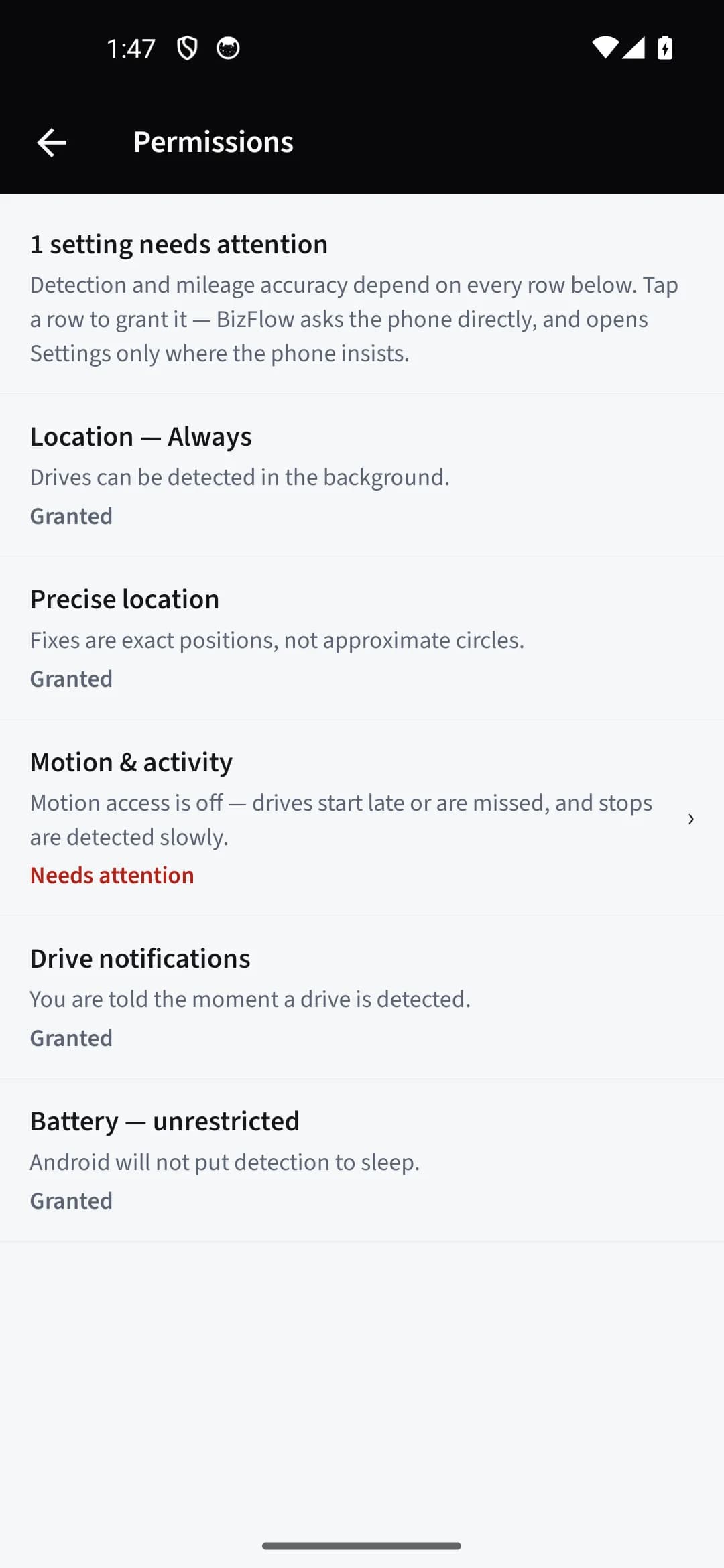
Open the More tab → "Permissions". Every grant detection needs is listed with its live state — anything marked "Needs attention" is your answer. Tap the row: the app asks the phone directly, and opens Settings only where the phone insists.
Permissions decay silently
Phones quietly downgrade grants: location slips from "Always" to "While using", and precise location can get switched off. Both make detection stop with no error anywhere. If drives went quiet after a system update, re-check "Location — Always" and "Precise location" first.
Android: battery must be Unrestricted
If the "Battery — unrestricted" row needs attention, Android is allowed to put detection to sleep to save power. Tap the row and set BizFlow to Unrestricted under App info → Battery.
The Samsung sleeping-apps mystery
On Samsung phones, once BizFlow is set to Unrestricted it disappears from the "Sleeping apps" and "Never sleeping apps" pickers. That is not a bug: an Unrestricted app is outside the sleeping system entirely, so those lists no longer apply to it — there is nothing left to add. The Permissions screen’s Samsung row says exactly this.
Low Power Mode dulls detection
Low Power Mode (iOS) and Battery Saver (Android) delay the signals detection rides on, so drives start late or short ones are missed. The app shows a warning while either is on; turn it off for reliable tracking.
Force-closed the app? Just open it
Swiping the app away in the app switcher can stop detection on some phones until the app runs again. BizFlow checks its own engine every time you open it and restarts detection if it died — so when in doubt, open the app once and drive.
Still stuck
Check the "Drive notifications" row (drives may be detected but nothing is telling you), and on iOS the "Lock Screen drive card" row. If every row is granted and drives still do not appear, use "Contact support" on the More tab — the Diagnostics screen keeps an event log on your phone that helps pin it down.
Still stuck?
Email supportRelated guides
Start with the MasterClass
Practical, educational instruction for entrepreneurs and business professionals — with every deliverable, policy, and access period stated before you buy.