

Review and classify detected drives
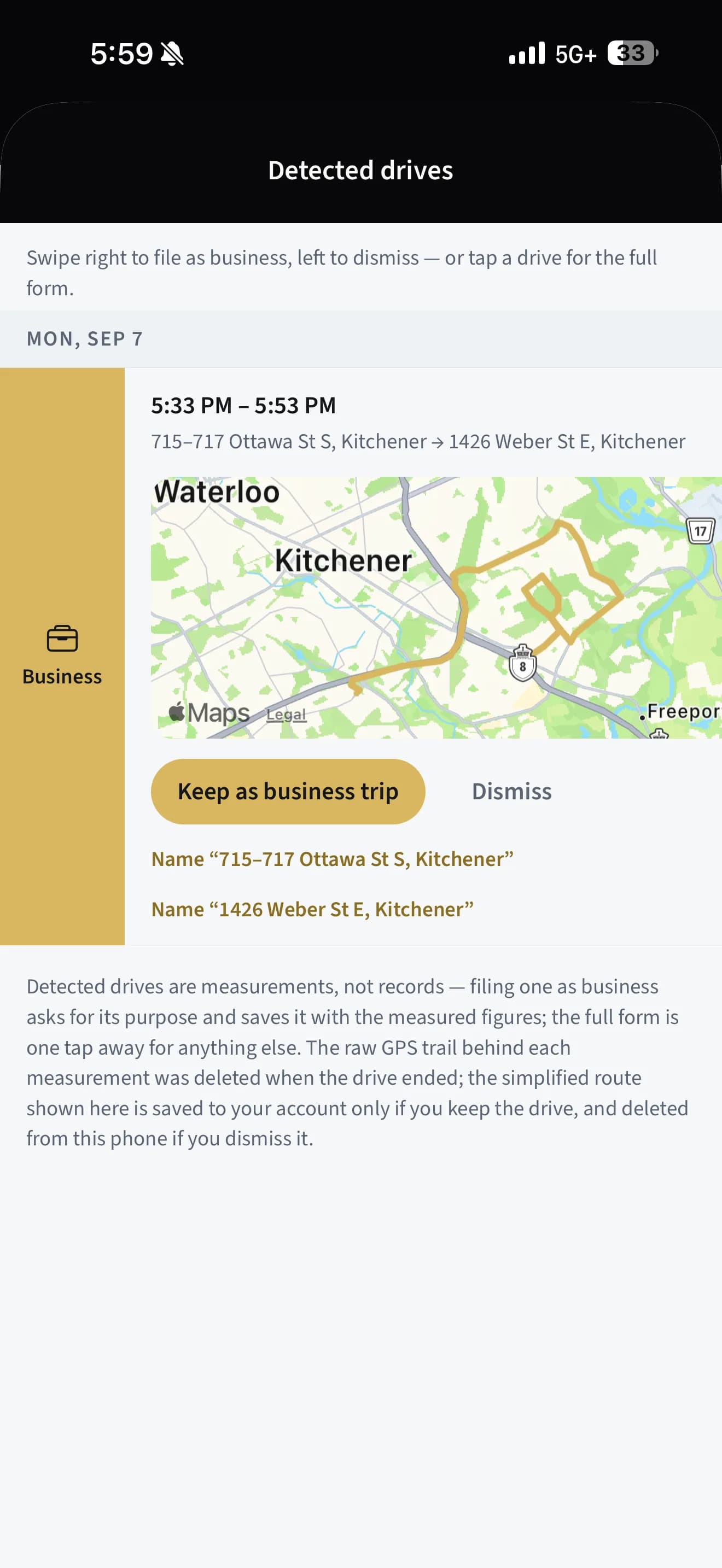
Detected drives wait on a review list: swipe right to file one as business, swipe left to dismiss it, and undo if you slip.
Tracking drives
Review and classify detected drives
Detected drives wait on a review list: swipe right to file one as business, swipe left to dismiss it, and undo if you slip.
Updated Sep 10, 2026 · 5 steps · 1 min read
Find your detected drives
A few minutes after you park, the finished drive lands on the review list. Home shows a banner while a drive is being detected and a count when drives are waiting — tap it, or open "Detected drives" from the More tab’s Tracking section.
Swipe right to file as business
Swipe a drive to the right to reveal "Business". A sheet asks "What was this drive for?" — type the purpose or tap one of your recent ones, then tap "Save business trip". The trip files with the measured miles, times, and route.
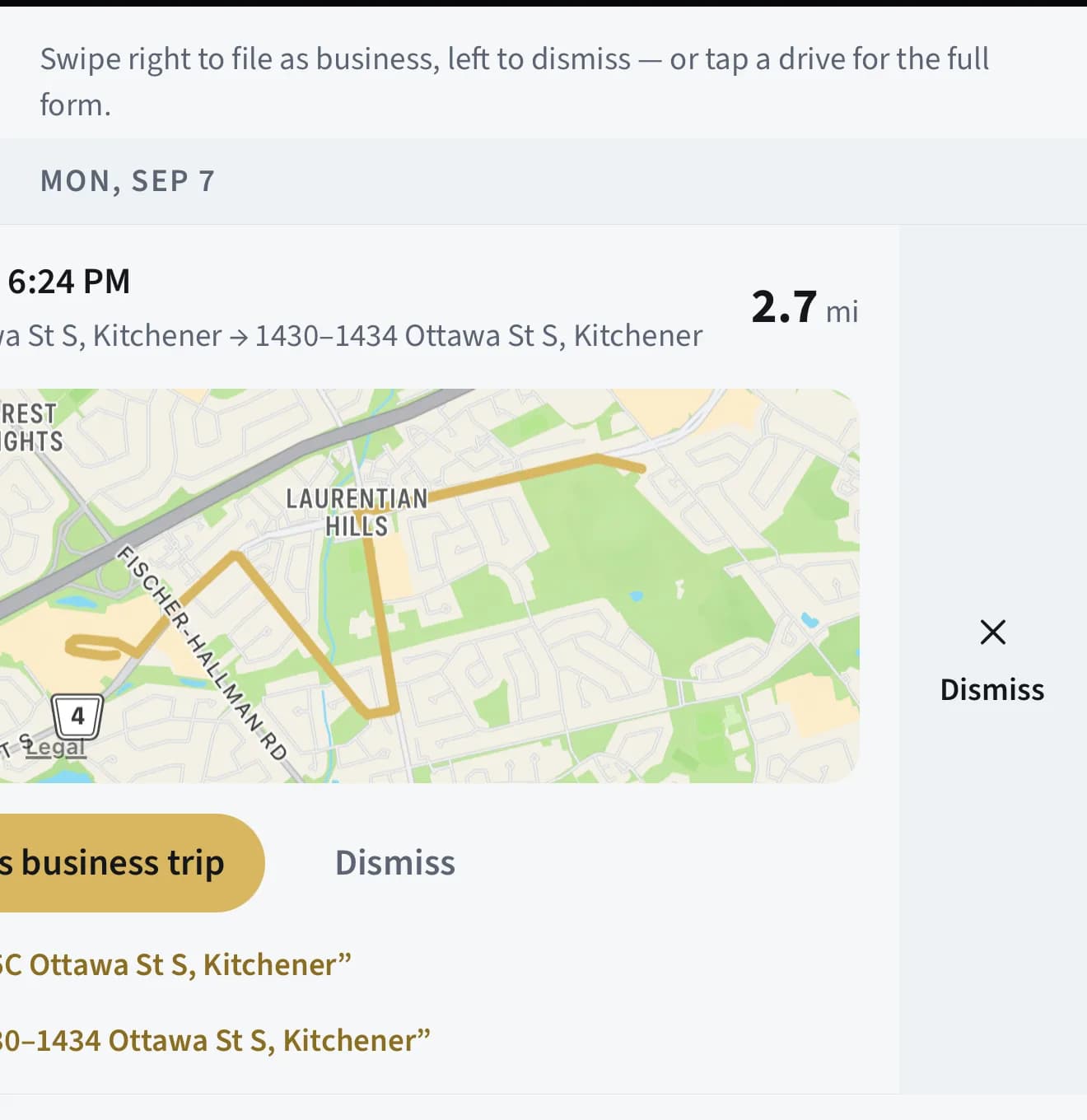
Swipe left to dismiss
Swipe left to reveal "Dismiss" for drives that were personal errands or noise. A "Drive dismissed." banner appears with an "Undo" button for a few seconds if you swiped the wrong one.
Tap for the full form
Tap a drive (or its "Keep as business trip" button) to open the trip form prefilled with the measured figures. Use this path when the drive was personal, medical, or charitable, needs a vehicle or job attached, or a figure needs correcting.
Trust the suggestions, keep the decision
A drive may arrive with a line like "Suggested: Business — inside work hours" or "— your rule Home → Office". Suggestions come from your work schedule and your route rules; they pre-fill, and your swipe or tap is still the only thing that records anything.
Still stuck?
Email supportRelated guides
Start with the MasterClass
Practical, educational instruction for entrepreneurs and business professionals — with every deliverable, policy, and access period stated before you buy.