

Reports and the tax pack
Read the monthly profit and loss, open the year-end tax pack, and export the PDF, CSV, and full-year archive your preparer can work from.
Reports
Reports and the tax pack
Read the monthly profit and loss, open the year-end tax pack, and export the PDF, CSV, and full-year archive your preparer can work from.
Updated Sep 10, 2026 · 6 steps · 1 min read
Read the month
On the web, open Reports for the month’s profit and loss beside the month before — income, expenses, and profit, each with its change. On the phone, "Monthly report" under the More tab shows the same story.
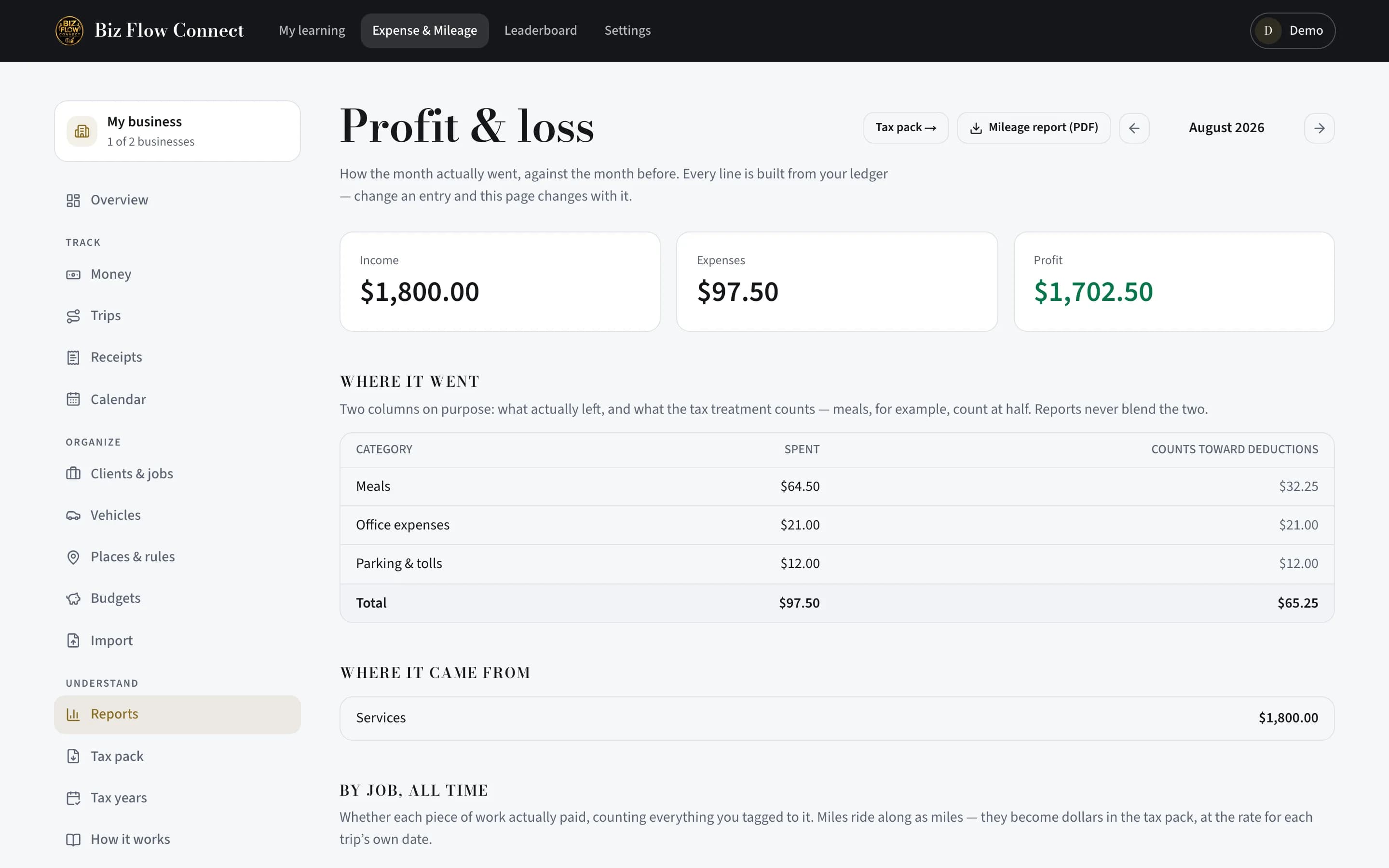
See where the money went
The expenses table shows two columns on purpose: what actually left, and what the tax treatment counts — meals, for example, count at half. Reports never blend the two.
Open the tax pack
Click "Tax pack" in the Reports header or the sidebar. It gathers the year in one place: the mileage log valued at the IRS rate for each trip’s own date, the per-vehicle summary, and parking and tolls on top.
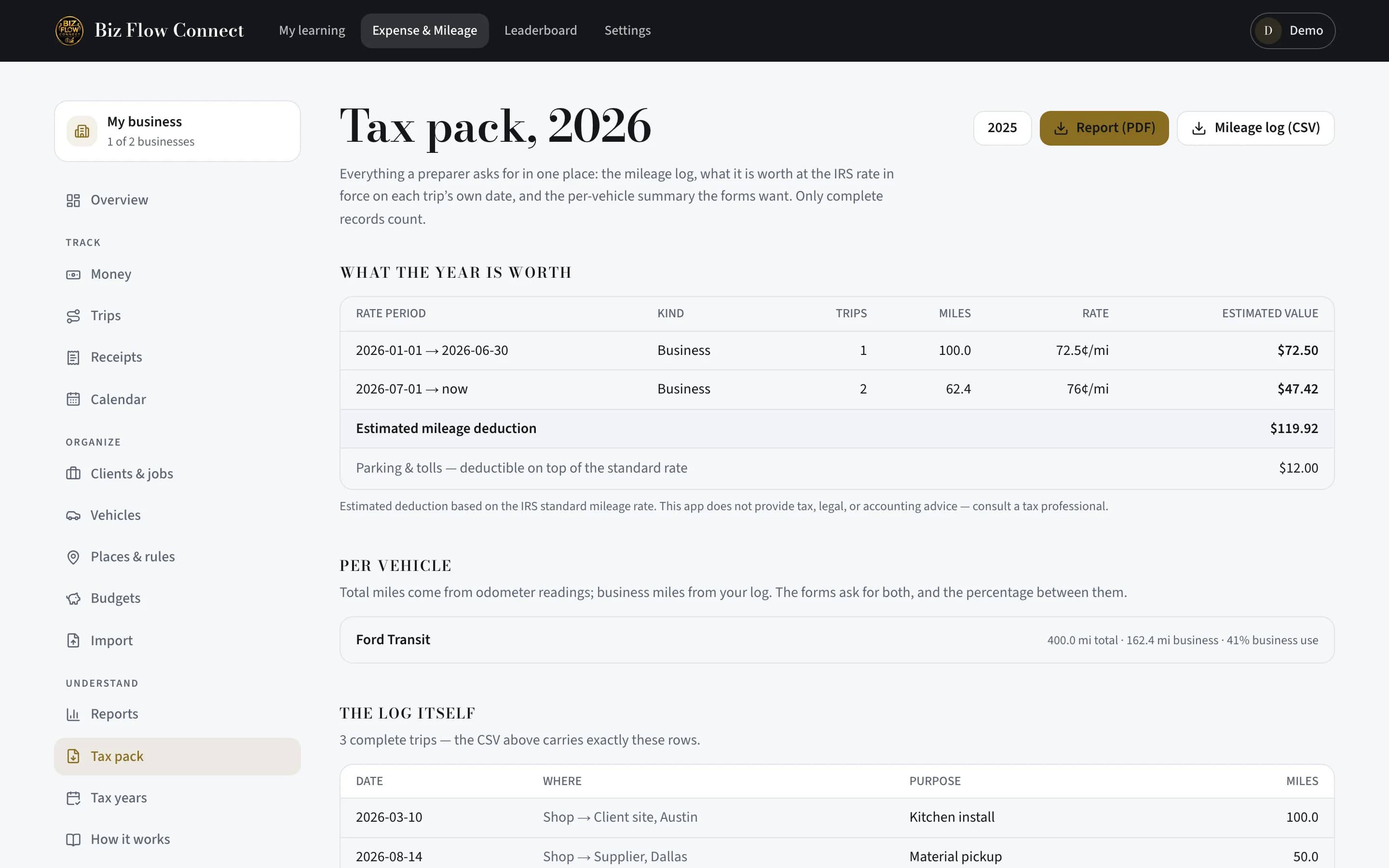
Export the documents
From the tax pack, download "Report (PDF)" and "Mileage log (CSV)". On the phone, the More tab’s Export section offers the same per year, plus the ledger CSV.
Take the whole year with you
The "Year archive" builds one zip: every receipt image, a manifest saying which expense each one backs, and the mileage log. Hand it to your preparer or keep it — records are expected to be kept for years after filing.
Optional: the monthly email
At the bottom of Reports, turn on "Monthly report by email" to get each closed month’s mileage summary with a link to the PDF. It is off unless you turn it on.
Still stuck?
Email supportRelated guides
Start with the MasterClass
Practical, educational instruction for entrepreneurs and business professionals — with every deliverable, policy, and access period stated before you buy.