

Set up expense rules and categories
Teach BizFlow your vendors once — a rule files anything matching a pattern into the right category as you type, and you stay in charge.
Receipts
Set up expense rules and categories
Teach BizFlow your vendors once — a rule files anything matching a pattern into the right category as you type, and you stay in charge.
Updated Sep 10, 2026 · 5 steps · 1 min read
What a rule does
A filing rule says "any vendor containing this text files as that category". When you record money and the vendor matches, the category fills in with a note naming the rule. It is a suggestion — pick a different category and your pick wins.
Make one while recording money
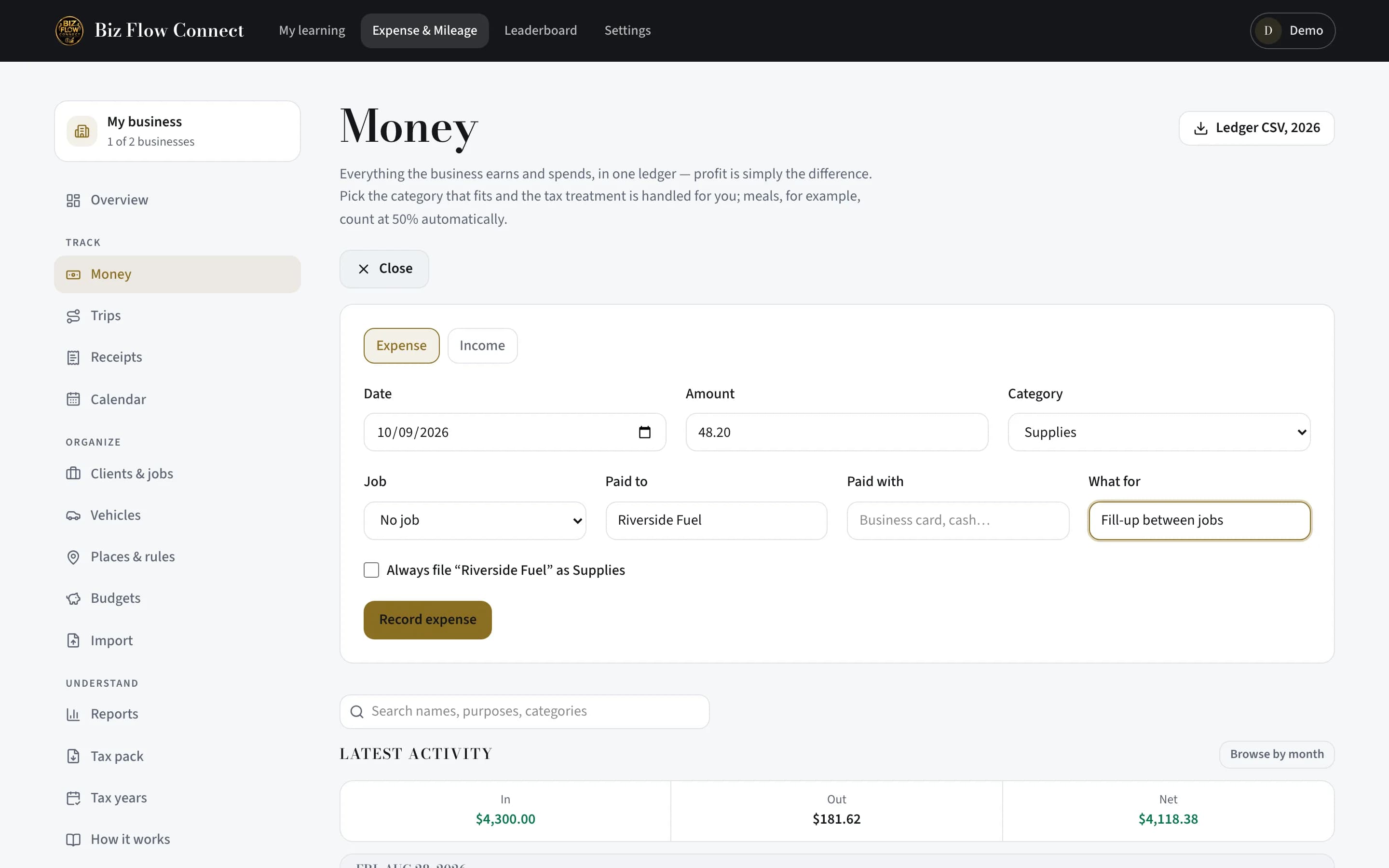
The easiest rule is the one made in passing: on the money form, tick "Always file “…” as …" under the vendor and category you just chose. Next time that vendor files itself.
Manage rules on the phone
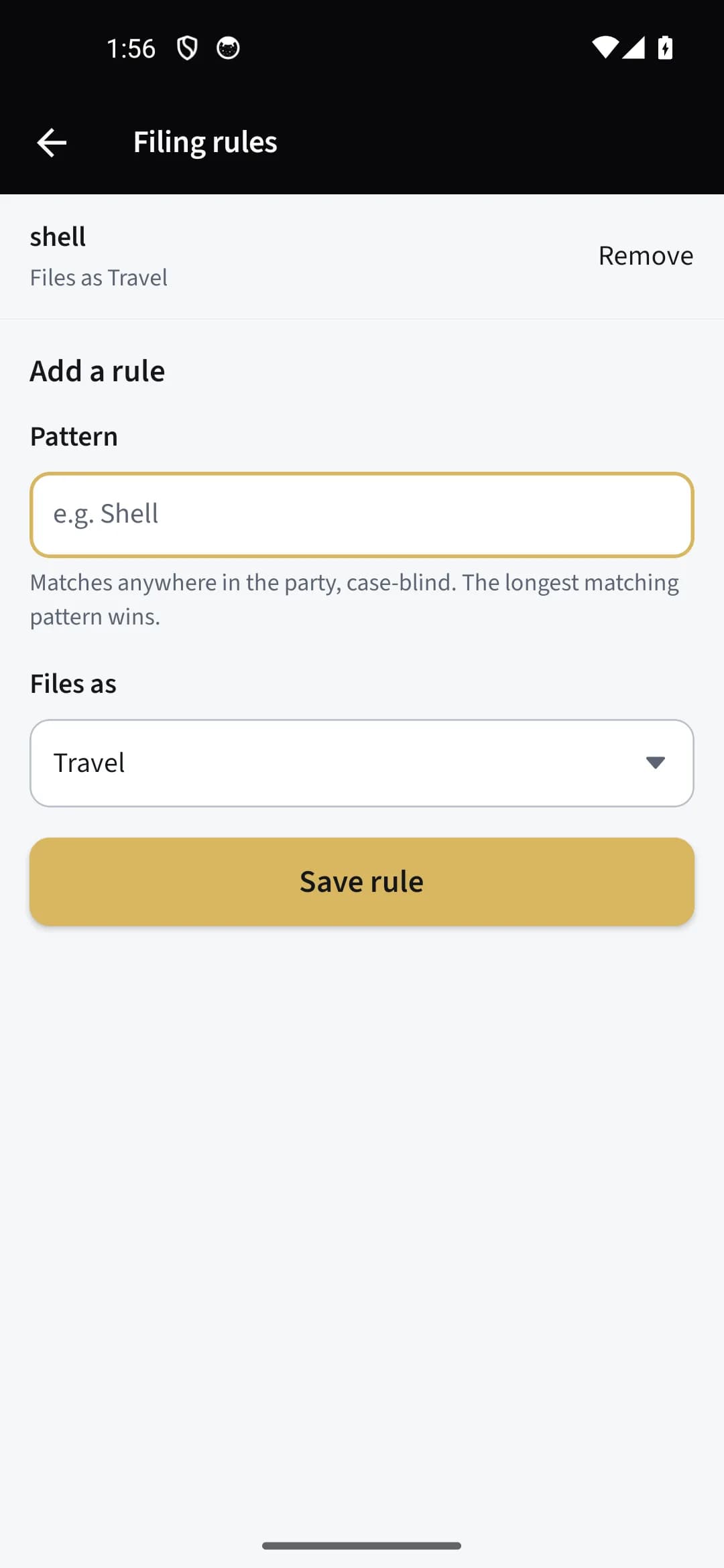
Open "Filing rules" from the More tab. Add one with a pattern of at least two characters and a "Files as" category, then "Save rule". Patterns match anywhere in the vendor name, capitals ignored, and the longest matching pattern wins.
Manage rules on the web
The same list lives on the Money page: "When the vendor contains" and "File it as", then "Save rule". Rules made on either surface apply on both.
Remove without rewriting history
Removing a rule stops future filing only — records already categorized keep their categories.
Still stuck?
Email supportRelated guides
Start with the MasterClass
Practical, educational instruction for entrepreneurs and business professionals — with every deliverable, policy, and access period stated before you buy.