

Snap receipts and let the app read them
Photograph a receipt and the app reads the total, vendor, and date for you to confirm — with a "Read it again" retry when the print is stubborn.
Receipts
Snap receipts and let the app read them
Photograph a receipt and the app reads the total, vendor, and date for you to confirm — with a "Read it again" retry when the print is stubborn.
Updated Sep 10, 2026 · 5 steps · 1 min read
Snap it the day you get it
Open the Receipts tab and tap "Add receipt" (or "Snap a receipt" on Home). Thermal paper fades in weeks; the photo does not.
Take the photo
Tap "Take photo" and shoot the receipt flat, filling the frame — or "Choose from library" for one you photographed earlier. If it came out blurry, tap "Retake".

Save it
Tap "Save receipt". The photo is kept on your phone and uploads when there is a connection — no signal at the register changes nothing. After upload, the server reads the print and works out the amount, vendor, and date.
Turn the receipt into an expense
Back on the Receipts tab, the "To record" filter shows receipts waiting to become expenses. Tap one, then "Record new expense" — the form opens prefilled with what was read, and you confirm every field before anything is saved. If the expense already exists, tap "Attach to an expense" instead.
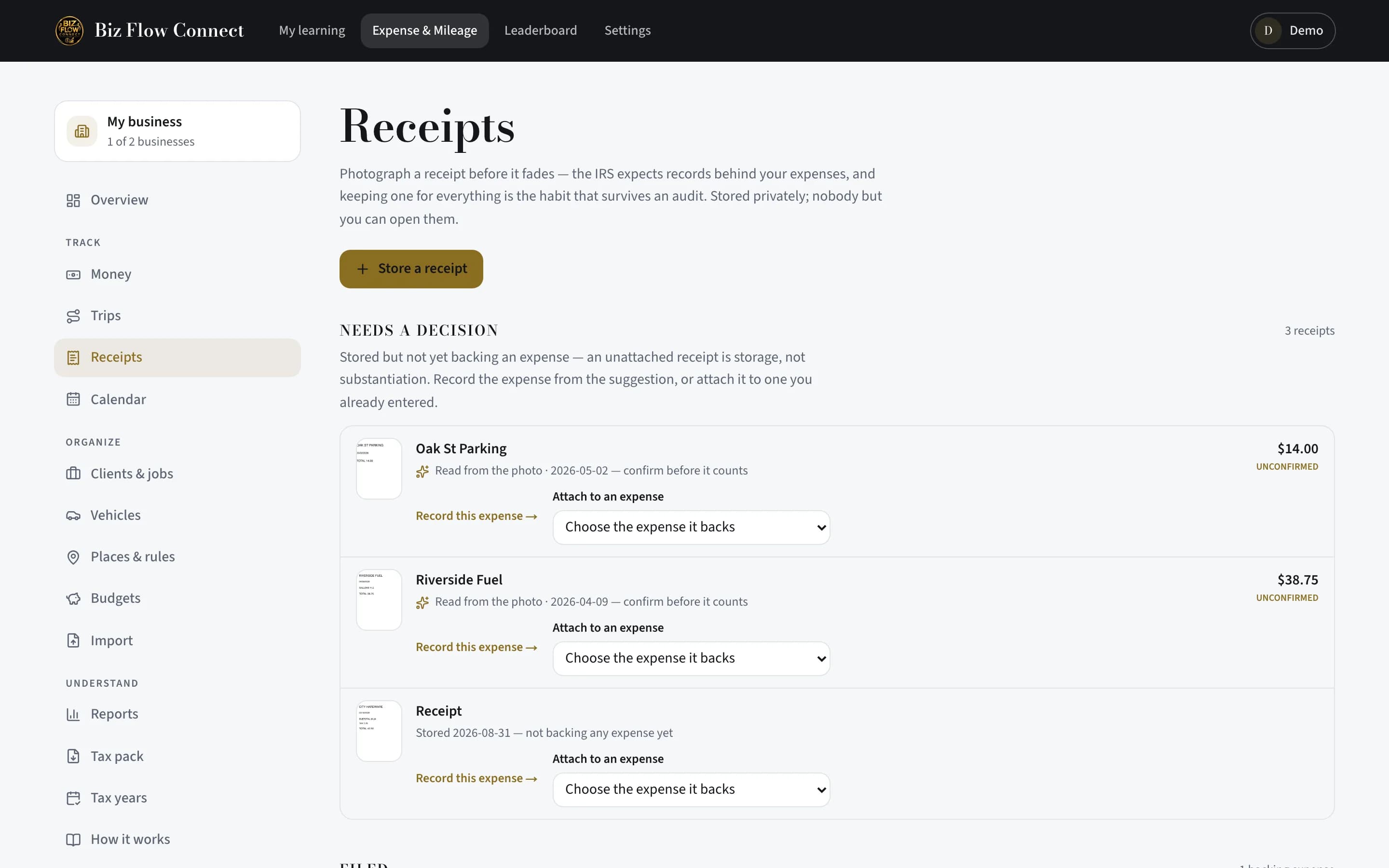
When the print would not read
If nothing could be read, the receipt says so and offers "Read it again" — a second, more thorough read. If that also comes back empty, record the expense and type the details yourself; the photo still backs the record.
Still stuck?
Email supportRelated guides
Start with the MasterClass
Practical, educational instruction for entrepreneurs and business professionals — with every deliverable, policy, and access period stated before you buy.