

Name your places
Give the spots you drive between names like Home and Office — drives show your words instead of street addresses, and smarter suggestions unlock.
Places & rules
Name your places
Give the spots you drive between names like Home and Office — drives show your words instead of street addresses, and smarter suggestions unlock.
Updated Sep 10, 2026 · 5 steps · 1 min read
Why names matter
A named place is a name on a circle around a real spot. Once "Home" and "Office" exist, drive cards say "Home → Office" instead of two street addresses, and route rules — standing answers for regular routes — become possible at all.
Name a place from a drive
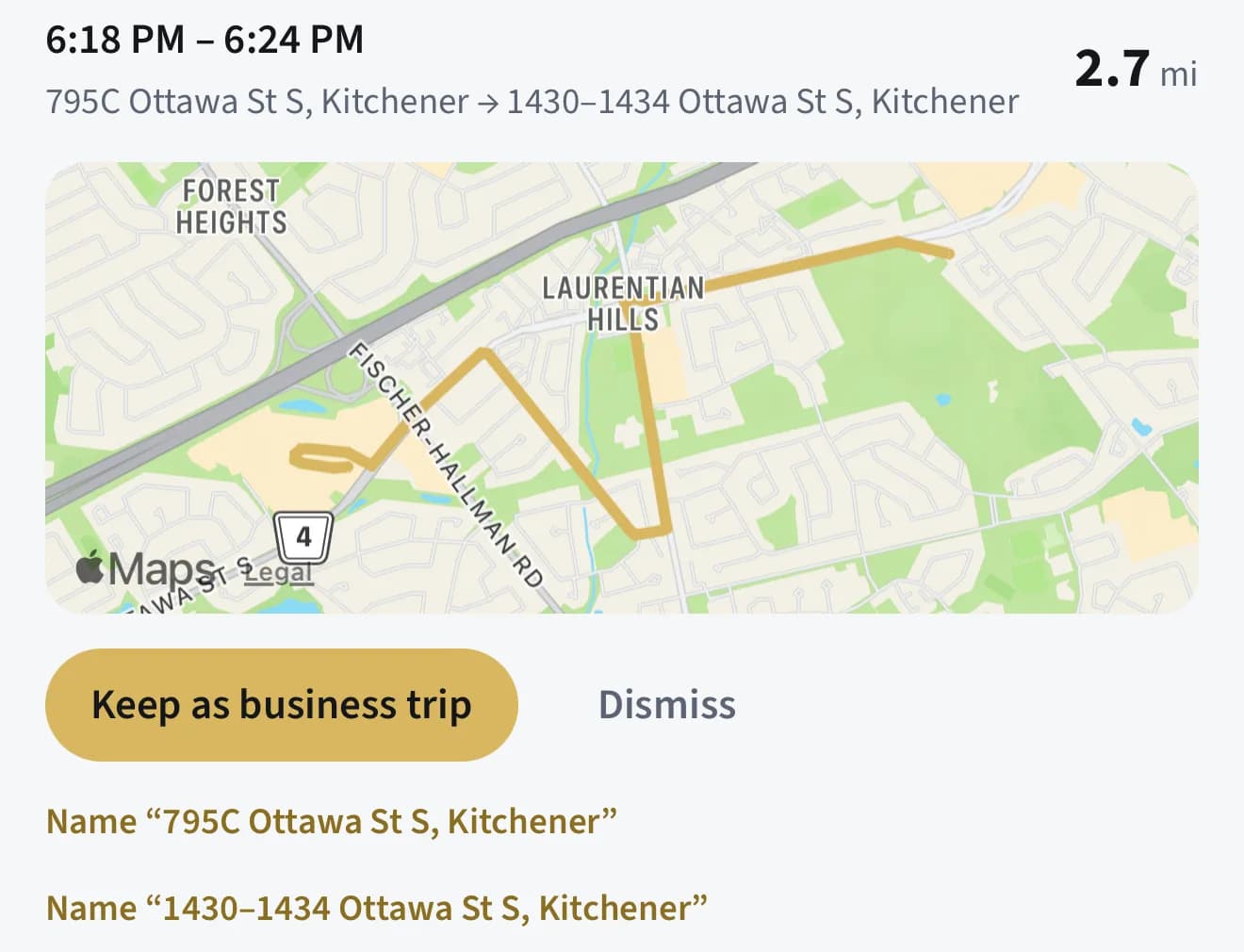
On a detected drive whose endpoint has no name yet, tap "Name the start", "Name the stop", or the "Name “…”" link that shows the geocoded address. The place is anchored at the drive’s own endpoint — real coordinates from a real drive.
Choose the name and the circle
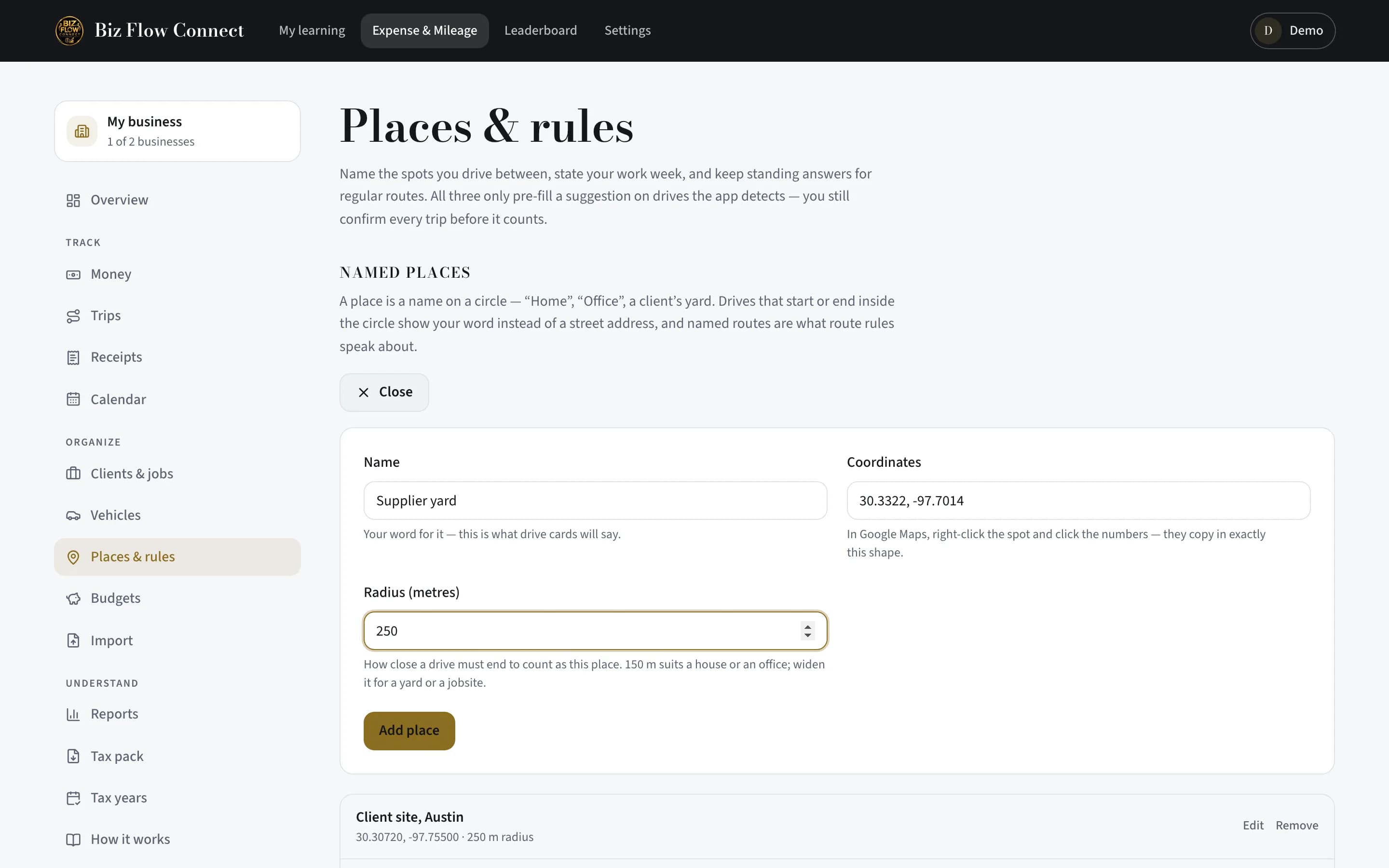
Enter the name you actually use — "Home", "Office", "Northside depot". Then pick "Counts as here within": 100 m suits a house, 150 m is the default, 250 m a big lot, 500 m a large site. Any drive ending inside the circle counts as this place.
Save — and watch it apply backwards
Tap "Save place". Naming is retroactive: trips already recorded pick up the new name from their stored routes, so your history reads "Home → Office" too.
Manage places anywhere
On the phone, "Named places" under the More tab lists every place — tap "Edit" to rename, resize, or remove one. On the web, Places & rules has an "Add a place" form that takes pasted coordinates: in Google Maps, right-click the spot and click the numbers to copy them.
Still stuck?
Email supportRelated guides
Start with the MasterClass
Practical, educational instruction for entrepreneurs and business professionals — with every deliverable, policy, and access period stated before you buy.